


Shopware 6: Installation
Setting up Folio Familie
To use the Shopware interface, the Folio Familie module "Webservice (API)" must be booked and the account permission "Webservice (API, Zapier) ⭢ HTTP request JSON response + Zapier" must be activated.
In addition, a Folio Familie user with the role authorization "Permissions modules ⭢ Webservice (API) ⭢ Use" must be set up. Shopware logs into Folio Familie with this user data. We recommend setting up a separate user for this to separate Shopware calls from other types of use.
Setting up Shopware
The plugin is installed via the Shopware online store.
Settings
Log in to the admin area of your Shopware store. Under the "Marketing ⭢ MAILINGWORK" tab, you will find all the relevant settings. You make the settings for each sales channel.
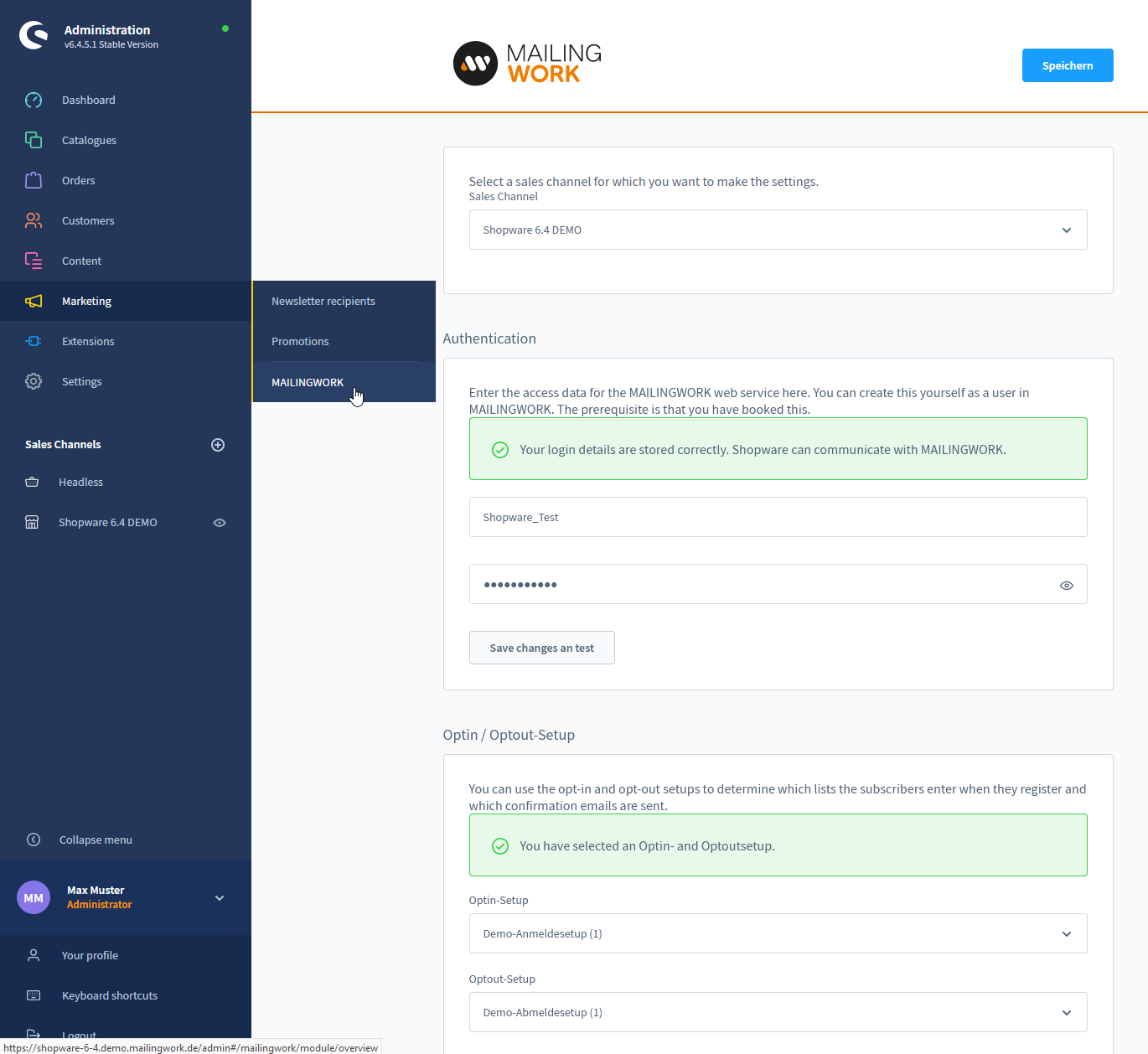
Select a sales channel. Enter the login data of the Folio Familie user. Then select a setup for opt-in and opt-out. These two setups will be used when exporting via the console as well as in the customer login profile.
In the last step, the subscriber data to be transferred must be assigned (mapped). The plugin offers all subscriber fields available in the Folio Familie account. Select the subscriber fields to be transferred.
At least the subscriber fields that were defined as mandatory fields in the Folio Familie opt-in setup must be selected.
Contents
You can integrate forms for opt-in and opt-out directly as a content element. The plugin provides its own content element "MAILINGWORK" for this purpose, which you can find under "Forms". In this, you select the SalesChannel as well as an opt-in and opt-out setup. Via the form type you can determine whether an opt-in form, an opt-out form or both should be displayed. All fields to be displayed are fetched directly from the opt-in setup from Folio Familie. Please make adjustments about the fields to be displayed in Folio Familie.